Posts

How to add AIDL folder | Android Studio
Image
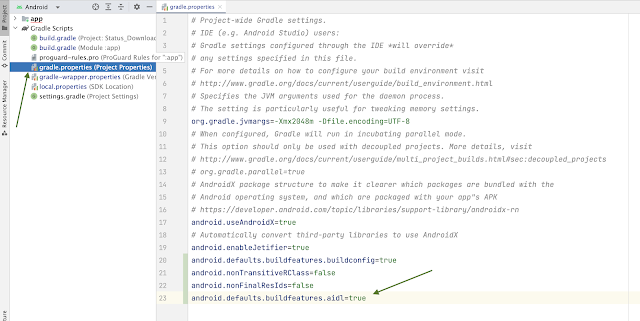
What is AIDL? The AIDL stands for Android Interface Definition Language. It's a Flag to enable the AIDL compilation. How To Enable AIDL? Step 1: Open the gradle.properties file and add the  android.defaults.buildfeatures.aidl=true at the end of this file as shown in the screenshot. Step 2: Right Click on the app folder it will show a window do the following flow app > New > Folder > AIDL Folder Step 3 : Click the Finish button The AIDL folder is created and ready to use Note: This article will also help you to resolve the following issue AIDL File (Requires setting the buildFeatures.aid to true in the build file)

Generate Random Color - Android Studio - Java

Image
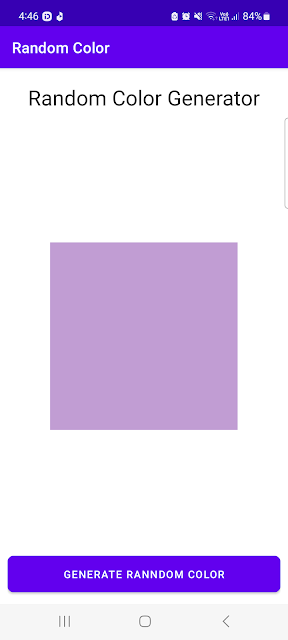
Generate random color(s) using Android Studio and Java There may be some situations in which you need the feature to generate a random color.  For example, in a list of items, if you want to assign different colors to each item/row, you may have seen the WhatsApp Group Chat List, where each person's name is displayed in a different color.  I'll do it using a button click. You can do it according to your requirements/needs. >> View for Java >> View for Kotlin >> View for Compose Code Code Snippet Random rnd = new Random (); int color = Color . argb ( 255 , rnd . nextInt ( 256 ), rnd . nextInt ( 256 ), rnd . nextInt ( 256 )); activity_main.xml <?xml version="1.0" encoding="utf-8"?> <RelativeLayout xmlns:android= "http://schemas.android.com/apk/res/android" xmlns:app= "http://schemas.android.com/apk/res-auto" xmlns:tools= "http://schemas.android.com/tools" android:layout_width= ...

Generate Random Color - Android Studio - Kotlin

Image
Generate random color(s) using Android Studio and Kotlin There may be some situations in which you need the feature to generate a random color.  For example, in a list of items, if you want to assign different colors to each item/row, you may have seen the WhatsApp Group Chat List, where each person's name is displayed in a different color.  I'll do it using a button click. You can do it according to your requirements/needs. >> View for Java >> View for Kotlin >> View for Compose Code Code Snippet val rnd = Random() val color = Color.argb( 255 , rnd.nextInt( 256 ), rnd.nextInt( 256 ), rnd.nextInt( 256 )) activity_main.xml <?xml version="1.0" encoding="utf-8"?> <RelativeLayout xmlns:android= "http://schemas.android.com/apk/res/android" xmlns:app= "http://schemas.android.com/apk/res-auto" xmlns:tools= "http://schemas.android.com/tools" android:layout_width= "match_parent" ...

Bitmap from View | Android Studio | Kotlin

Image
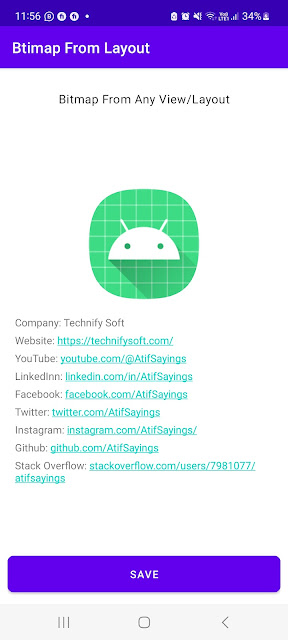
How to get and save the screenshot of a specific part of the Screen? In this tutorial, we will learn how to get the Bitmap from any UI View and Save it to Storage/Gallery. For Example, we have a LinearLayout containing some child views such as ImageView(s), TextView(s), and maybe some more UI Views. On clicking a button we will save that LinearLayout as an image in storage/gallery. So by learning this technique you can save any UI View or Layout as an image in Storage/Gallery. >> Check For Java >> Check For Kotlin >> Check For Compose Code: activity_main.xml <?xml version="1.0" encoding="utf-8"?> <RelativeLayout xmlns:android= "http://schemas.android.com/apk/res/android" xmlns:app= "http://schemas.android.com/apk/res-auto" xmlns:tools= "http://schemas.android.com/tools" android:layout_width= "match_parent" android:layout_height= "match_parent" android:padding= ...

Bitmap From View | Android Studio | Java

Image
How to get and save the screenshot of a specific part of the Screen? In this tutorial, we will learn how to get the Bitmap from any UI View and Save it to Storage/Gallery. For Example, we have a LinearLayout containing some child views such as ImageView(s), TextView(s), and maybe some more UI Views. On clicking a button we will save that LinearLayout as an image in storage/gallery. So by learning this technique you can save any UI View or Layout as an image in Storage/Gallery. >> Check For Java >> Check For Kotlin >> Check For Compose Code: activity_main.xml <?xml version="1.0" encoding="utf-8"?> <RelativeLayout xmlns:android= "http://schemas.android.com/apk/res/android" xmlns:app= "http://schemas.android.com/apk/res-auto" xmlns:tools= "http://schemas.android.com/tools" android:layout_width= "match_parent" android:layout_height= "match_parent" android:padding= ...

Permission Handling - Android Studio - Kotlin

Image
How to handle single & multiple runtime permissions As we know we need to request Runtime Permissions on Android 6.0 (API level 23 also known as Marshmallow) and above as well as to declare them in the AndroidManifest file.  If we need to use some features like Camera, Location, Contact, etc. we have to handle the runtime permissions. In this Tutorial, we will learn how to Request Single and Multiple Permissions. Note: I'll add some permissions for example purposes only you may apply the same on permissions you want. >> Check For Java >> Check For Kotlin >> Check For Compose Video: Code: AndroidManifest.xml <?xml version="1.0" encoding="utf-8"?> <manifest xmlns:android= "http://schemas.android.com/apk/res/android" xmlns:tools= "http://schemas.android.com/tools" > <!--For Single Permission Example--> <uses-permission android:name= "android.permission.ACCESS_FINE_LOCATION" ...