Posts

Showing posts with the label ActionBar

Add a Back Button to Action Bar Android Studio (Kotlin)

Image
      DESCRIPTION       In this tutorial we will add a back button in action bar, when it is clicked it will go to previous activity(the app will close if this was launcher activity). We will go from main activity to new activity by clicking button in main activity. In new activity we will add a back button to actionbar when that button is clicked the main activity will appear...       VIDEO             SOURCE CODE       Step 1:  Create a new Project  or  open new project Step 2: Create New Activity File>New>Activity>EmptyActivity Step 3: Code: activity_main.xml <?xml version="1.0" encoding="utf-8"?> <LinearLayout xmlns:android= "http://schemas.android.com/apk/res/android" xmlns:app= "http://schemas.android.com/apk/res-auto" xmlns:tools= "http://schemas.android.com/tools" android:layout_width= "match_parent" ...
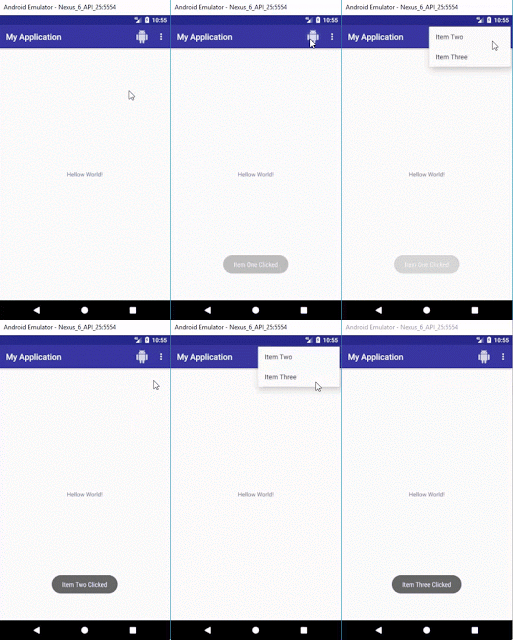
Add items/menu in Actionbar/Toolbar (Kotlin) - Android Studio

Image
In this tutorial we will add items in actionbar/toolbar, 3-dot menu in actionbar/toolbar and handle item clicks using Kotlin. There will be three items in menu you can add as many as you want. One item will be displayed on action bar with icon, other two items will be displayed by clicking 3-dot menu... Step 1:  Create a new Project  or  open new project Step 2: Create new "Android Resource Directory" by clicking "res>New>Android Resource Directory", choose menu from Resource type Step 3: Create menu.xml by clicking "menu>New>Menu resource file" Step 4: Enter an icon in drawable folder by clicking "drawable>New>Image Asset"  Step 5: Code menu.xml <? xml version= "1.0" encoding= "utf-8" ?> < menu xmlns: android = "http://schemas.android.com/apk/res/android" xmlns: app = "http://schemas.android.com/apk/res-auto" > < item ...

Android Filter Recyclerview by using SearchView in ToolBar or actionbar

Image
In this tutorial we will cover the following: ✔ Recyclerview ✔ CardView ✔ Custom Row ✔ SearchView ✔ Row Animation ✔ Item Click Step 01: Add following dependencies in build.gradle(Module:app) under dependencies{} implementation 'com.android.support:design:27.1.0' implementation 'com.android.support:cardview-v7:27.1.0' implementation 'com.android.support:recyclerview-v7:27.1.0' Step 02: Create menu.xml  under res>menu folder, to search item. <? xml version= "1.0" encoding= "utf-8" ?> < menu xmlns: android = "http://schemas.android.com/apk/res/android"    xmlns: app = "http://schemas.android.com/apk/res-auto"    xmlns: tools = "http://schemas.android.com/tools"    tools :context= ".MainActivity" > < item android :id= "@+id/action_search" android :title= "Search" app :actionViewClass= "android.support.v7.widget.Search...