Posts

Obtain Certificate SHA1 and SHA-256 Fingerprint Using Android Studio
Image
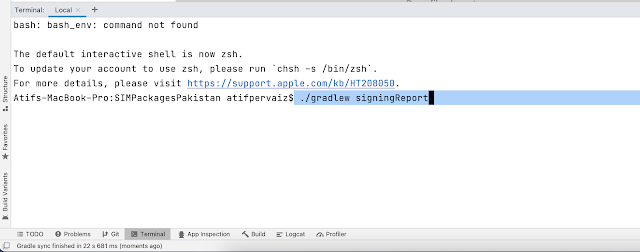
What is SHA1? SHA1 ( S ecure H ash A lgorithm 1 ) hash value is typically rendered as a hexadecimal number, 40 digits long used by the organizations like Google , Facebook etc uses SHA-1 hash value for secure connection between their services and clients. SHA-1 value of debug will be different from SHA-1 value of release build . How to Obtain SHA1 Using Android Studio Terminal 1) Open Android Studio 2) Open Terminal 3) Type the command (MAC) ./gradlew signingReport                          OR 3) Type the command (Windows) .\gradlew signingReport Note: If you receiver Permission denied warning then put bash and then command for example bash ./gradlew signingReport 4) SHA1 certificate will be displayed in the window opened at the bottom Using Keystore file with Terminal 1) Open Android Studio 2) Open Terminal and type the following command      keytool -list -v -keystore <your keyst...

Cloud Firestore - CRUD & Search - Android

Image
Firebase Firestore Video tutorial series will cover following topics: ✓Connect App with Firebase  ✓Enable/Use Firebase Cloud Firestore.  ✓Add/Upload data to Firebase Cloud Firestore.  ✓Show data from Firebase Cloud Firestore.  ✓Update existing data to Firebase Cloud Firestore.  ✓Delete existing data from Firebase Cloud Firestore.  ✓Search existing data from Firebase Cloud Firestore.

Write PDF - Android Studio - Kotlin

Image
Write PDF using EditText: 1) We will use iText PDF Library to create pdf  2) We will input text Using EditText  3) Button to save text as PDF file  4) It will require WRITE_EXTERNAL_STORAGE permission to save pdf file,  5) We'll handle runtime permission too >> Watch For Java Library Link:  https://developers.itextpdf.com/itextg-android VIDEO : Step 1:  Create a new Project   or   open new project Step 2: Add following library in build.gradle(Module:app) dependencies { compile 'com.itextpdf:itextg:5.5.10' } Step 3: Add WRITE_EXTERNAL_STORAGE permission in AndroidManifest Step 4: Code AndroidManifest.xml <?xml version="1.0" encoding="utf-8"?> <manifest xmlns:android= "http://schemas.android.com/apk/res/android" package= "com.blogspot.atifsoftwares.writepdf_kotlin" > <!--storage permission--> <uses-permission android:name= "an...

Write PDF - Android Studio - Java

Image
Write PDF using EditText: 1) We will use iText PDF Library to create pdf  2) We will input text Using EditText  3) Button to save text as PDF file  4) It will require WRITE_EXTERNAL_STORAGE permission to save pdf file,  5) We'll handle runtime permission too >> Watch For Kotlin Library Link:  https://developers.itextpdf.com/itextg-android VIDEO: Step 1:  Create a new project   OR   Open your project Step 2: Add following library in build.gradle(Module:app) dependencies { compile 'com.itextpdf:itextg:5.5.10' } Step 3: Add WRITE_EXTERNAL_STORAGE permission in AndroidManifest Step 4: Code AndroidManifest.xml <?xml version="1.0" encoding="utf-8"?> <manifest xmlns:android= "http://schemas.android.com/apk/res/android" package= "com.blogspot.atifsoftwares.writepdf_java" > <!--add permission--> <uses-permission android:name= "android.permission...

Send Email using Intent - Android Studio - Kotlin

Image
How To Send an Email Using the Intent Learn how to implement email functionality in your Android app using Kotlin and Android Studio IDE. This step-by-step guide covers using Android Intents to launch email clients with pre-filled recipient addresses, subjects, and message bodies. >>  Check For Java >>  Check For Kotlin >>  Check For Compose VIDEO Step 1:  Create a new Project   or   open your project Step 2: Code AndroidManifest.xml <manifest xmlns:android= "http://schemas.android.com/apk/res/android" xmlns:tools= "http://schemas.android.com/tools" > <!--For Gmail Intent: Since Android 11 (API level 30), most user-installed apps are not visible by default. In your manifest, you must statically declare which apps you are going to get info about, as in the following:--> <queries> <package android:name= "com.google.android.gm" /> </queries> .... </manifest...

Send Email using Intent - Android Studio - Java

Image
How To Send an Email Using the Intent Learn how to implement email functionality in your Android app using Java and Android Studio IDE. This step-by-step guide covers using Android Intents to launch email clients with pre-filled recipient addresses, subjects, and message bodies. >>  Check For Java >>  Check For Kotlin >>  Check For Compose VIDEO Step 1:  Create a new project   OR   Open your project Step 2: Code AdroidManifest.xml <manifest xmlns:android= "http://schemas.android.com/apk/res/android" xmlns:tools= "http://schemas.android.com/tools" > <!--For Gmail Intent: Since Android 11 (API level 30), most user-installed apps are not visible by default. In your manifest, you must statically declare which apps you are going to get info about, as in the following:--> <queries> <package android:name= "com.google.android.gm" /> </queries> .... </manifest...