Posts

Spinner - Android Studio - Java

Image
How to use the Spinner in Android Studio with Java In this tutorial, you’ll learn how to use a Spinner in Android Studio using Java . A Spinner in Android works like a drop-down menu that displays a list of values, allowing the user to select one option at a time . The Android Spinner is part of the AdapterView family, which means it requires an Adapter to bind data to the UI. In this example, we’ll use an adapter to populate the Spinner with items and handle user selection events. >> Check For Java >> Check For Kotlin >> Check For Compose Code: activity_main.xml <?xml version="1.0" encoding="utf-8"?> <LinearLayout xmlns:android= "http://schemas.android.com/apk/res/android" xmlns:app= "http://schemas.android.com/apk/res-auto" xmlns:tools= "http://schemas.android.com/tools" android:layout_width= "match_parent" android:layout_height= "match_parent" android:o...

Bluetooth Example

Image
Using BluetoothAdapter class we will do the following operations Check if Bluetooth is available or not. Turn On/Off Bluetooth. Make Bluetooth Discoverable. Display Paired/Bounded devices. Note: The getBoundedDevices() method of BluetoothAdapter class provides a set containing list of all paired or bounded bluetooth devices. Permissions Required: BLUETOOTH, BLUETOOTH_ADMIN Step 1:  Create a new project   OR   Open your project Step 2:  Add 2 Images to show Bluetooth status icons Step 3:  Add  BLUETOOTH, BLUETOOTH_ADMIN  permission in AndroidMenifest.xml Step 4: Code AndroidManifest.xml <?xml version="1.0" encoding="utf-8"?> <manifest xmlns:android= "http://schemas.android.com/apk/res/android" package= "com.blogspot.atifsoftwares.bluetoothexample" > <uses-permission android:name= "android.permission.BLUETOOTH" /> <uses-permission android:na...

Check Network Status - Android Studio - Java

Image
How to check Network Connection Status In this tutorial, you will learn how to detect the type of internet connection in an Android app using Java. We will check whether the device has no internet connection , is connected through Wi-Fi , or is using Mobile Data . This is a common feature in modern Android applications to improve user experience and handle offline scenarios smoothly. By the end of this guide, you’ll understand how to access the Android network services, detect connection status programmatically, and display meaningful messages to users based on their connectivity state. >> Check For Java >> Check For Kotlin >> Check For Compose Code: AndroidManifest.xml <?xml version="1.0" encoding="utf-8"?> <manifest xmlns:android= "http://schemas.android.com/apk/res/android" xmlns:tools= "http://schemas.android.com/tools" > <uses-permission android:name= "android.permission.ACCESS_NETWORK_ST...

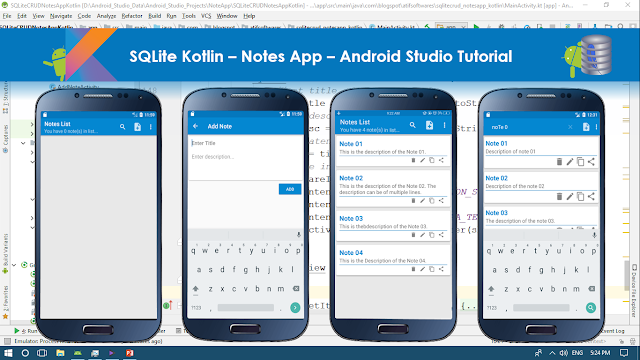
SQLite Kotlin – Notes App – Android Studio Tutorial

Image
In this tutorial we will make a "Notes App" using SQLite and Kotlin. It will contain following features. ✓Enter Data ✓Retrieve Data in ListView ✓Update/Edit Data ✓Delete Data ✓Search Data ✓Copy Data ✓Share Data Step 01:  Create a new Project  or  open new project Step 02: Create layout resource file under res>layout folder Step 03: Create new "Android Resource Directory" by clicking "res>New>Android Resource Directory", choose menu from Resource type Step 04: Create menu_main.xml by clicking "menu>New>Menu resource file"  Step 05: Create empty Activity name it as "AddNoteActivity.kt" Step 06: Create Class Note.kt Step 07: Create Class DbManager.kt Step 08: Source Code build.gradle(module:App) apply plugin: 'com.android.application' apply plugin: 'kotlin-android' apply plugin: 'kotlin-android-extensions' android { compileSdkVersion 27 defaultConfig { ...